152

The keys Home, End, PageUp, PageDown all type a ~ in my bash session instead of moving the cursor / view around. Why does this happen and which settings do I need to change?

GNU bash, version 4.0.28(1)-release (x86_64--netbsd)
PuTTY v0.60

The question originally read:

In PuTTY, why does pressing the "Home" key on the shell (bash) type a "~"? Or rather, how do I make it move the cursor to the start of the command I've typed?

(I thought the reason was that ~ is the home directory, but the answers say this is not so.)

RomanSt
  • 9,751
  • I can't post an answer here. But if you're trying to use those buttons from the numeric keyboard then it can be solved very easily: go to Settings > Terminal > Features and enable Disable application keypad mode – Stalinko Aug 20 '22 at 10:23

8 Answers8

186

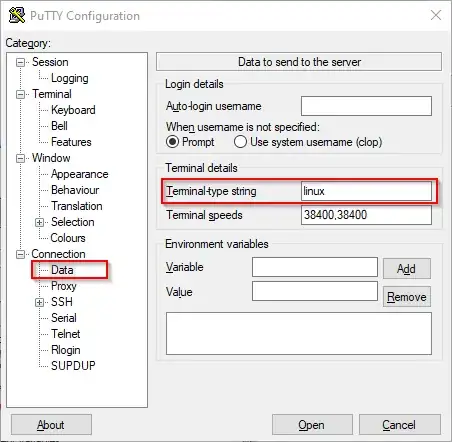
Under the Connection > Data tab, change the Terminal-type string from the default “xterm” to “linux”. It worked for me.

Screenshot of relevant setting

  • 2
    Thanks! I had this problem after I tred to make Ctrl Left/Right work using this method (http://superuser.com/a/103097/45410). – Edwin Yip Nov 04 '12 at 17:04
  • 7
    Emphasis: not Terminal -> Keyboard "The Function keys and keypad". – Elazar Dec 03 '14 at 13:43
  • 6
    It works but creates other problems like disabling mouse support. so, it is not acceptable solution for me – Anton Sep 22 '15 at 20:58
  • This solution also enables umlauts inside putty when connecting to OS X! – lorem monkey Mar 03 '16 at 17:30
  • 2
    found one major problem with this solution. When copy pasting a long bash script from windows to vi in putty, top section gets truncated. Recommend setting Terminal-type string to "putty" instead. – tinker Oct 07 '20 at 08:35
  • ... or, to add to the comment by @tinker: set the terminal type string putty-256color or do it inside your shell altogether by exporting TERM=putty or TERM=putty-256color. – 0xC0000022L Jan 14 '22 at 16:00
54

This is happening because you don't have PuTTY's terminal type set correctly, or because your server doesn't have the correct terminfo definitions installed.

On Debian-based systems, the ncurses-term package (version 5.7+20081213-1) includes terminfo definition files for putty, putty-256color and putty-vt100 terminal types. If you have this package installed, you can set the "Terminal-type string" to "putty" instead of the default "xterm" in Putty's session configuration (Connection -> Data).

Stephen Irons also mentions "linux" as another terminal type that works; I believe this is correct from prior experience, but haven't tested it recently.

On my systems, this allows Home and End to work correctly, though PageUp/PageDown do not scroll the console window. (They do work properly in ncurses applications like aptitude, and Shift-PgUp/Shift-PgDn scroll the console window.)

quack quixote
  • 42,640
  • 3
    Yes, using TERM=putty or TERM=putty-256color is wisest, though unfortunately at the moment the latter doesn't seem to work right for colors 8-15 (which are supposed to be the bright versions of 0-7). The other "solutions" are are very likely to flake out sometimes do to their flagrant disregard of the differences between the terminals involved. – SamB Oct 14 '10 at 21:05
  • yum install ncurses-term sorted it for me on CentOS 7 with putty on next login, thank you. – Wandering Zombie Dec 07 '14 at 14:21
  • 1
    setting terminal type to putty works but breaks xterm-like mouse support (e.g. for Midnight Commander) – Anton Sep 22 '15 at 21:02
  • installing 'ncurses-term' worked for me on Debian testing. – hochl Aug 08 '16 at 13:05
  • none of these work for me, I am on putty connecting to centos, and can't run yum install ncurses-term because I am not root. – Herman Toothrot Sep 10 '16 at 22:14
26

If you want to verify which code is sent by PuTTY to your terminal when you press a key or a combination of keys, you just have to issue a Ctrl+V and then press on the desired key.

For example on my box, pressing the Home key will generate the following string on my terminal:

^[[1~

That means that PuTTY sends the escape character ^[ followed by the string [1~.

You can create an ~/.inputrc file in your $HOME folder, or alternatively an /etc/inputrc file depending on your system. Then fill this file with the PuTTY codes and the matching Bash actions you want to be triggered by Bash.

Note: Replace every ^[ character by the equivalent \e string

In my example, I'll add a line with my Home key code and the beginning-of-line action (which by default is bound to Ctrl+A in Bash):

"\e[1~": beginning-of-line

FYI, my inputrc file has the following content:

set meta-flag on
set input-meta on
set convert-meta off
set output-meta on
"\e[1~": beginning-of-line     # Home key
"\e[4~": end-of-line           # End key
"\e[5~": beginning-of-history  # PageUp key
"\e[6~": end-of-history        # PageDown key
"\e[3~": delete-char           # Delete key
"\e[2~": quoted-insert         # Insert key
"\eOD": backward-word          # Ctrl + Left Arrow key
"\eOC": forward-word           # Ctrl + Right Arrow key

From @Cimbali: More bindable commands (like previous-history: Move `up' through the history list) available on this reference page.

Damien Garrido
  • 360
  • 3
  • 4
  • YES ! Finally ! Putty's terminal-type string didn't do anything for backward-word and forward-word. This is great ! – Cimbali Jan 24 '15 at 17:39
  • 1
    This is the only acceptable solution because TERM=linux or TERM=putty break xterm-like mouse support. Thanks! – Anton Sep 22 '15 at 21:06
14

Crtl+A takes you to the start of the line

Here's a list of Bash keyboard shortcuts

Iain
  • 4,748
  • 17
    That's great and all, but Home/End are hard-wired in my brain, and since I only administer the server once in a blue moon the chances of unlearning the hard-wiring are slim. – RomanSt Jan 07 '11 at 12:27
10

What it's actually sending is ^[[1~ which is a terminal escape sequence consisting of:

  • ^[ - escape
  • [ - left square bracket
  • 1 - one
  • ~ - tilde

You can see that by pressing Ctrl+V then Home.

You might be able to fix your problem by changing the PuTTY keyboard setting for Home and End keys to rxvt (which makes the escape sequence ^[[H or by changing the $TERM you're using (or by editing ~/.inputrc).

By the way there's no relationship between the tilde you get when you press Home and the tilde that represents the home directory. For example, in my setup Page-Down produces ^[[6~ which would also print a tilde if it weren't being properly interpreted.

3

Non of these options worked for me. I am running an old AIX system. I had to add the following alias's to my .profile

alias __A=$(print '\0020') # ^P = up = previous command
alias __B=$(print '\0016') # ^N = down = next command
alias __C=$(print '\0006') # ^F = right = forward a character
alias __D=$(print '\0002') # ^B = left = back a character
TruCK
  • 31
2

I couldn't get it working with other methods. I however created this AutoHotkey script that works, as long as your shell is Bash:

#IfWinActive ahk_class PuTTY
PgUp::Send +{PgUp}
PgDn::Send +{PgDn}
Home::Send ^a   ; beginning of line
End::Send ^e    ; end of line
+^Del::Send ^k  ; delete whole line after cursor
+End::Send ^k   ; delete whole line after cursor
+Home::Send ^u  ; delete whole line before cursor
^Del::Send !d   ; delete word after cursor
^BS::Send ^w    ; delete word before cursor
^Left::Send !b  ; jump word left
^Right::Send !f ; jump word right
#IfWinActive

Use with caution though, since not all of these bash hotkeys work in other programs.

Ciantic
  • 281
  • This would mess with the main reason I'm looking at this: screen, which with the default settings breaks Ctrl-A because it uses it as an escape character.... – Gert van den Berg Apr 19 '16 at 08:50
  • @GertvandenBerg FWIW, if you bind it to send ^a followed by another a, screen will send a literal CTRL+A, which in bash takes you to the beginning of the line as described. Of course this AHK binding won't work outside of screen... – Doktor J Dec 28 '21 at 16:13
  • @DoktorJ True, but it would break doing anything else in screen that requires the escape sequence (its defaults suck) (The methods tuning the terminal type end up more practical mostly) (I might have been on Solaris servers often when I commented) – Gert van den Berg Dec 29 '21 at 11:15
1

For MTPuTTY

  1. Open any connection properties
  2. Click Run PuTTY Config
  3. Open Connection > Data tab and set Terminal-type string to linux
  4. Come back to Session tab
  5. Select Default Settings in the list and click Save
  6. Close the window