How can I apply a modifier only to a part of an object? I want to model a goblet with a pedestal, and if I add a subsurf, the pedestal, of course, gets an unwanted round shape. How can I avoid that? I have tried Googling it, but, to my surprise, found nothing.
Asked
Active
Viewed 5.8k times
36


-
The quality of all the aswers is overwhelming, thank you all very much ! – user2664856 Dec 21 '13 at 11:41
4 Answers
26
This is possible on some modifiers via vertex groups, however this is not possible with subsurf modifier.
You could instead try some of these:
For reference, here is the original subsurfed mesh:

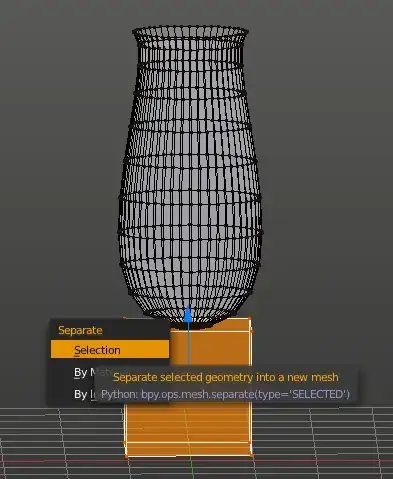
Separate the pedestal and goblet into different objects (P > By Selection). E.g. by separating the face of the cube on the
+Xaxis:
You can Split off geometry in Edit Mode with Y. This will give basically the same result as Separate, but within a single object:

You could also use the Edge Split modifier the same way, by either using Ctrl + E > Mark Sharp, or with the Edge Angle property.
Use supporting geometry (i.e. edgeloops) to make edges less round. You could use Ctrl + R to add loopcuts, or use Ctrl + B to bevel edges (using the mousewheel to adjust the number of segments). E.g. bevel with
2segments:
Use Mean crease to make edges less round (Shift + E). E.g. with a Crease weight of 1:


-
1Mean Crease worked marvelously for me, thank you very very much ! before i accept your answer i want to give a chance to others to answer the question with the partial application :-) but again thanks for fast answer ... I would give +1 but i dont have 15 rep here yet -___- – user2664856 Dec 21 '13 at 09:51
-
@Gunslinger As far as I can tell, they are the same thing. It is called mean crease in the
Ctrl+Emenu, and Mean Crease (or Crease if only one edge is selected) in the properties region. – gandalf3 Dec 21 '13 at 09:52
12
Another way would be to separate the mesh into two objects and group them. After that you can assign modifiers as you like to the different parts of the mesh,
- First select some vertices in the Edit Mode, P to Separate,
- Select both objects and set one as parent Ctrl-P


stacker
- 38,549
- 31
- 141
- 243
9
Yet another way, is to use Bevel modifier. For comparison, here's the result of Edge Crease:

... and with Edge Bevel Weight + Bevel modifier:

Both are done by marking the same set of edges, the latter with Edge Bevel Weight,

... then placing a Bevel modifier atop (applied before) the Subsurf, setting its limit method to Weight so it uses each edge's bevel weight to consider which ones to bevel:

The bevel's smoothness can be further configured by tweaking the modifier's Width and Segments settings. In contrast with edge crease, this method adds vertices, even more with each additional Bevel segments:


Adhi
- 14,310
- 1
- 55
- 62
0
So I ran into this problem but have decent solution if you do not mind Triangles
select all the faces you do not want subdivided add the subdivision modifier set the values and apply it go to edit mode the selected area should also contain the subdivided poly's right click UN-Subdivide
