8

Update, in 2.71 and newer, there is no longer a limitation

I like to use Matcaps as they greatly improve the viewport performance and are good when editing to get an idea of what the object looks like textured. However, if I have multiple objects, only the selected object shows the Matcap.

Is it possible to use Matcaps for all objects, and not just the one selected?

ideasman42
  • 47,387
  • 10
  • 141
  • 223
  • First question first: what are 'Matcaps'? – Gwen May 24 '13 at 04:18
  • @Gwenn Matcaps allow the use of a set of predefined GLSL shaders in the 3d view without rendering. They somewhat match a set of materials though they do not take user textures and are not perfect renditions. A full render should still be used to check appearance. – nanofarad Jun 02 '13 at 16:26
  • I seem to have the opposite problem with Blender 2.73. When I turn Matcap on, all objects are shaded with the same Matcap texture. For sculpting, I only want the selected object shaded with Matcap (as in numerous tutorials). How can I get it to just do Matcap shading for the selected object in Sculpt mode? – Chuck Jan 17 '15 at 22:51
  • @Chuck you should open a new question for that. – A Wild RolandiXor Has Appeared Jan 21 '15 at 15:12

2 Answers2

12

You can do this by adding a new material and then adding an image texture to it, load in a matcap (grab some here from Blender's online src) or here from zBrush's free library and under Mapping in the texture tab set the coordinates to Normal.

Now in your scene, in the N panel under Display, change Shading to GLSL, switch the viewport shading to Texture with Alt + Z and add a Hemi lamp to your scene. Any objects with the material will now show as such.

To have all objects use matcaps just temporarily assign that material until you need to render etc. If you have multiple objects, you can quickly do this by selecting all the ones you want to apply it to then selecting the one with the material applied already and hit Ctrl + L and choose Materials.
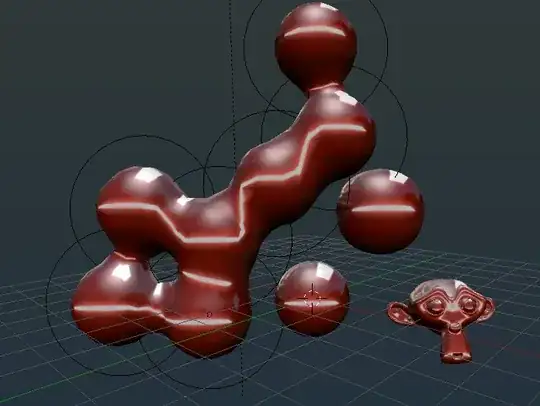
enter image description here

iKlsR
  • 43,379
  • 12
  • 156
  • 189
0

Under Viewport Shading tab select Random in the Colors section.

Duarte Farrajota Ramos
  • 59,425
  • 39
  • 130
  • 187
  • 1
    This question is no longer relevant in newer versions of Blender (it's 9 years old!) since nowadays switching to MatCap applies the same matcap to all objects. And your answer does not provide a solution, since Random gives random colors to objects, which actually makes all matcaps tinted slightly different instead of making them all the same. And even if someone still uses such an old version where the matcap only worked on selected objects, the Random feature wouldn't be available to them because it was first introduced in version 2.80. – Gordon Brinkmann Apr 07 '22 at 09:02