39

As per the title, is it possible to split the vimrc file in several sub-files? Keep separate files for groups of settings that concern one thing? This thing might be anything, any kind of user-defined group of settings. For example,

[updated]

  • keep all Python(-mode) related settings in vimrc.python-mode?
  • keep settings for the Calendar utility for vim in vimrc.calendar?
  • keep color setting in a separate file?
  • keep mappings (aka shortcuts?) in a separate file?
Martin Tournoij
  • 62,054
  • 25
  • 192
  • 271
Nikos Alexandris
  • 493
  • 1
  • 6
  • 10

4 Answers4

35

Yes this is possible and useful and even considered best practice. They are called filetype plugins in Vim speech. And Vim even comes with many filetype plugins (as well as indent and syntax files) for several languages.

You need to enable this in your .vimrc like this:

filetype plugin on

then put your specific filetype settings into a file (creating non-existing directories) called ~/.vim/ftplugin/python.vim for python settings. This is also covered in the FAQ.

Update (13.11.2015) There is also another possibility (if you don't want to use filetype specific options): If you want to group some options to a specific file, you can make use of the source or runtime command. For example my .vimrc contains this line:

" This script contains plugin specific settings
source ~/.vim/plugins.vim
" This script contains mappings
source ~/.vim/mapping.vim
" additional helper functions:
source ~/.vim/functions.vim
" For abbreviations read in the following file:
source ~/.vim/abbrev.vim
Christian Brabandt
  • 25,820
  • 1
  • 52
  • 77
  • Nice, I already have this! But never really had a close look. So, I pumped up vimrc. What about settings that do not concern a specific filetype though? – Nikos Alexandris Nov 11 '15 at 09:37
  • 2
    You may need :he autoload and :he source? Also check this answer http://stackoverflow.com/a/805242/1821490 – Alex Kroll Nov 11 '15 at 22:33
  • @AlexKroll not for filetype plugins. – Christian Brabandt Nov 12 '15 at 07:01
  • 1
    @ChristianBrabandt for everything you want. You can source any script in .vimrc. Just put source my-funy-useful-script.vim line in your .vimrc and Vim loads it after restarting( or :so $MYVIMRC command). Also :he writing-library-scripts may helps you. – Alex Kroll Nov 12 '15 at 07:20
  • @AlexKroll I think this is closer to the answer I am looking for. Would you mind editing the current answer and expand it? Or, make a separate answer? I am not looking only for specific file types. I hope this is clear in my question. – Nikos Alexandris Nov 12 '15 at 10:19
  • May the extension .vim be "dangerous", ie be confused with plugins? Maybe use better .vimrc? – Nikos Alexandris Nov 15 '15 at 13:01
  • It is not dangerous, if you do not place it in the plugin folder. But you can use .vimrc if you like. The extension does not matter for the source command – Christian Brabandt Nov 16 '15 at 11:49
7

Ftplugin

As mentioned do put settings pertaining to a certain file type in ftplugin.

Separate into Files

Break up code into different files. For example where my vimrc file is, there is a sub init/ dir which contains other files I wish to load at startup. To load them I use the below code. <sfile> evaulates to the current file (init.vim or .vimrc in this case), and :h means the head of it (the dir it is within). Here I am loading the files env.vim, then git.vim, etc..

source <sfile>:h/init/env.vim
source <sfile>:h/init/git.vim
source <sfile>:h/init/myplugins.vim
source <sfile>:h/init/visual.vim

Folds

I used to separate my init.vim into many other files, but it makes startup a little bit (insignificantly?) slower, but the main thing is ones setup becomes very fragmented, and constantly have to switch buffers when working on config. I moved to using folds. Refer to :help usr_28 for help on folds. Search down in particular for the section *28.6* Folding with markers

I break apart my init file as shown below. It shows a level1 KEYMAPPINGS fold expanded. There are many level2 subsections (folds) such as map, map!, function keys, visual mode within the main level1 section. In the image a level2 fold is expanded (Popup Menu keymappings`).
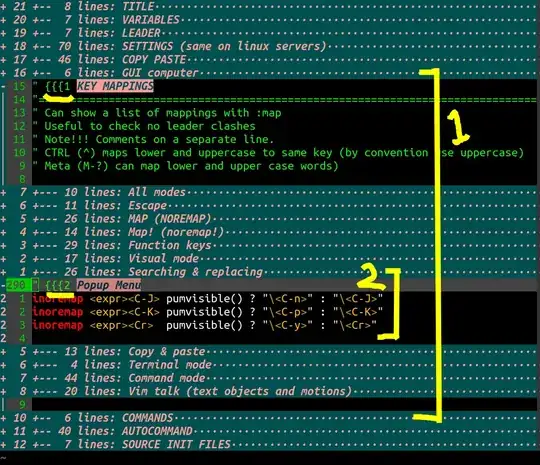
enter image description here

Firstly to enable {{{ and style folds set these options:

set foldmethod=marker
set foldcolumn=1

I use the following code to highlight the Level1 and Level2 section headings of the folds. _FoldLevel1 and _FoldLevel2 are highlight groups defined next.

augroup match_folds
    autocmd!
    " VimEnter handles at start up, WinNew for each window created AFTER startup.
    " Regex matches { { { with an empty group in the middle so that vim does
    " not create a fold in this code, then either a 1 or 2 then a space. Then
    " zs is the start of the match which is the rest of the line then ze is
    " the end of the match. Refer to :help pattern-overview
    autocmd VimEnter,WinNew * let w:_foldlevel1_id = matchadd('_FoldLevel1', '{{\(\){1\ \zs.\+\ze', -1)
    autocmd VimEnter,WinNew * let w:_foldlevel2_id = matchadd('_FoldLevel2', '{{\(\){2\ \zs.\+\ze', -1)
augroup END

I style my folds with:

" {{{ Folds
hi Folded               guifg=#FF9999 guibg=#005050 gui=bold,italic
hi FoldColumn           guifg=#FF9999 guibg=#005050 gui=bold
hi _FoldLevel1          guifg=#005050 guibg=#FF9999 gui=bold,italic
hi _FoldLevel2          guifg=#003030 guibg=#CC8080 gui=bold,italic
" }}}

Now place {{{1 to Create a level 1 esction, {{{2 to create a level 2 section: (I trimmed the file down, to a skeleton, normally each section is about a screen long).

" {{{1 GUI computer
set mouse=a                 " Enable use of the mouse for all modes
set number                  " Display line numbers on the left
set relativenumber

" {{{1 KEY MAPPINGS " Can show a list of mappings with :map " Note!!! Comments on a separate line.

" {{{2 All modes map ; : map! <M-;> <Esc>:

" {{{2 Map " Map backspace to other buffer noremap <BS> <C-^> noremap <BS> <C-^> " }}}2 <- OPTIONAL way to force closure of a section, if you want to create a blank line before the next section is automatically made with {{{1 or {{{2 etc

" {{{1 ANOTHER HEADING " More stuff

run_the_race
  • 893
  • 7
  • 9
6

It is completely possible to do what you want. Some of the others have said about filetype plugins which work well for that.

But you can source and .vim file in your vimrc so you can split the .vimrc into as many files as you would like. Just source the file and it will work. As a example here is my (probably not very useful) dotfiles. https://github.com/dspecht/dotfiles/

Spector
  • 61
  • 1
2

A More Modern (2020) Answer for Vim 8+

Because it's been a few years I figured that there's might be a better solution to this question for Vim 8+, so I asked over here:

How to autoload multiple rc-style files in Vim 8+

And it turns out that there is!!

Create a vimrc "plugin" (easy)

I don't know if this is the "best" way to do it, but it works and it requires next to zero vim know-how (just like I like it):

  • Create a "vimrc" plugin at ~/.vim/pack/plugins/start/vimrc
  • Add its pieces to ~/.vim/pack/plugins/start/vimrc/plugin/{foo,bar,baz}.vim

Example

Create the "vimrc" plugin directory:

mkdir -p ~/.vim/pack/plugins/start/vimrc/plugin/

Add the various pieces you want, as you wish:

cat <<EOF > ~/.vim/pack/plugins/start/vimrc/plugin/go.vim
let g:syntastic_go_checkers = ['go', 'golint', 'errcheck']
let g:go_fmt_command = "goimports"
EOF

Note: It's fine that this always loads because it's only setting variables and syntastic is only loading all of its stuff that uses the variables based on the filetype anyway.

For Highly Language Specific Things (easy)

If the settings are highly specific to a particular language only (as is my example above), you can also use an "after" plugin:

mkdir -p ~/.vim/after/ftplugin/<filetype>.vim
vim ~/.vim/after/ftplugin/go.vim

See also: https://vim.fandom.com/wiki/Keep_your_vimrc_file_clean

coolaj86
  • 135
  • 5