The proprietary graphics driver ATI Catalyst Linux (also known as fglrx) supports GPU frequency scaling (ATI Overdrive). You can alter the frequencies via aticonfig command, e.g:
aticonfig --od-setclocks=350,150
Run aticonfig --help or visit this page for the complete documentation.
Also, note that
there is no guarantee that the attempted clock values will succeed
even if they lay inside the theoretical range.
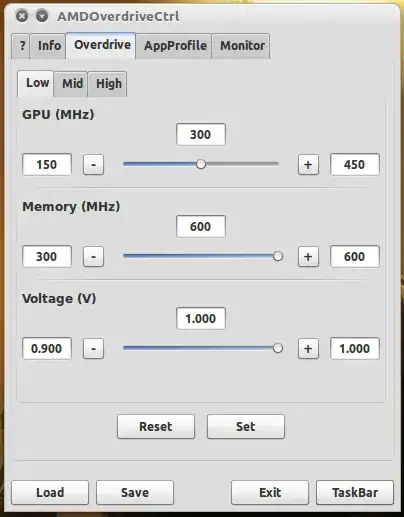
Another tool that works with the proprietary driver is AMDOverdriveCtrl:
The proprietary graphics driver has limited1 support for GPU frequency scaling via Coolbits options. Add
Option "CoolBits" "1"
or, for Fermi and newer cards (see this article)
Option "CoolBits" "8"
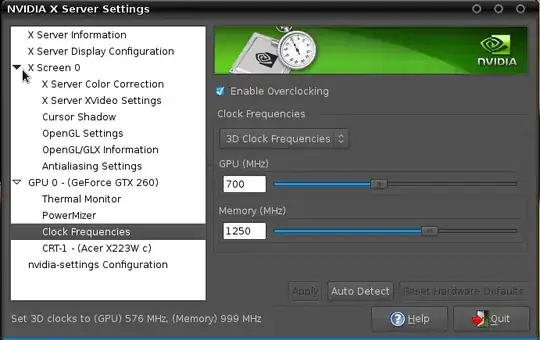
to the nVidia device section in xorg.conf (detailed description for each option in the oficial nVidia driver documentation). This practically "unlocks" the Clock Frequencies page in NVIDIA X Server Settings where you can enable overclocking/downclocking:
Alternatively, you can use nvidia-settings in terminal, e.g.
nvidia-settings --assign "[gpu:0]/GPUOverclockingState=1" --assign "[gpu:0]/GPU2DClockFreqs=350,550" --assign="[gpu:0]/GPU3DClockFreqs=500,800"
to enable frequency scaling and set core and memory frequencies for 2D & 3D profiles. Or
nvidia-settings --assign "[gpu:0]/GPUOverclockingState=0"
to revert to default frequencies. Run nvidia-settings --query all to get a list of all the attributes (like this one here).
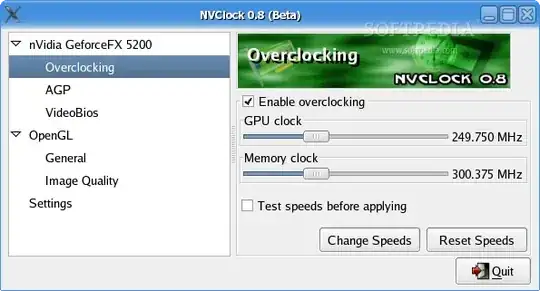
Another tool that works with the official driver is nvclock:
1. On mobile GPUs, limited clock manipulation support is available when "1" is set in the "Coolbits" option value: clocks can be lowered relative to the default settings, but overclocking is not supported due to the thermal constraints of notebook designs.
Those who have an Intel Sandybridge/Ivybridge GPU and the right hardware should be able to manipulate clock speeds via /sys/class/drm/card0/gt_*_freq_mhz files. Details on Daniel Vetter's page.

