41

Just updated to Windows 10. The expected change language shortcut stopped working.

In the settings it shows that "Alt + Shift" is supposed to work, just like before the upgrade, but it does not. The tool tip window that is shown when I float over the language bar says that the shortcut is "Windows key + Space", which works, but I prefer "Alt + Shift" like it used to be.

How can I make it use "Alt + Shift" again?

Arjan
  • 31,163
RCB
  • 561
  • 2
  • 5
  • 7
  • I've re-read this a couple of times... What is the question? Are you wanting to remap the shortcut to what it used to be? – NateR Aug 03 '15 at 06:06
  • The shortcut doesn't work. – RCB Aug 03 '15 at 06:06
  • 1
    But you said that Windows key + space does work... Does that not work as well? – NateR Aug 03 '15 at 06:08
  • In the settings it shows that "alt + shift" supposed to work; but it doesn't. "win key + space" does work - can't change the shortcut – RCB Aug 03 '15 at 06:10
  • 1
    So back to my first question... WinKey + space works (as intended, it looks like), but you want it to be changed to Alt + shift? I'm having a hard time finding out what you are wanting to do. – NateR Aug 03 '15 at 06:15
  • Before upgrading, the shortcut was "alt + shift", now "alt + shift" stopped working, in the settings I still see that this shortcut is selected as the working one. "win key + space" works, but I want it to be "alt + shift" – RCB Aug 03 '15 at 06:25
  • There is a problem with lenevo and windows 10 and the numlock key. actually I don't why but the problem is solved when I opened the numlock and the alt button worked! check this link for more info http://www.worldstart.com/alt-keys-not-working-in-windows-10/ – Shady Mohamed Sherif Jul 02 '17 at 14:40

4 Answers4

30

Go to Control Panel\Clock, Language, and Region\Language\Advanced settings, in a section called Switching input methods click on Change language bar hotkeys, continue with Advanced key settings tab, then click on button Change Key Sequence... and then choose from a list called Switch Keyboard Layout your desired LEFT ALT + SHIFT hotkey.

quaken
  • 325
  • 4
    as I said this option already selected – RCB Aug 25 '15 at 22:16
  • In a language settings, there should be one Windows display language, which has two keyboard layouts added, for example US and DE. Go again to in Change Key Sequence... menu a make sure you've chosen the option Not Assigned in a column Switch Input Language and your Left Alt + Shift in the Switch Keyboard Layout column. Then it should work. At least it works for me. – quaken Aug 25 '15 at 22:39
  • 1
    I could not make it work on my Lenovo S21e-20 notebook. The only setting that allows me to iterate through keyboards (languages) is when I have the "Use the desktop language bar when it's available" unchecked and the following language bar hotkeys set: Switch Input Language: Ctrl + Shift; Switch Keyboard Layout: Left Alt + Shift. Actually, the Left Alt + Shift does not seem to do anything, but at least, I can switch languages using a hotkey combination (not the one I normally used, but it's better than nothing). – Alek Davis Sep 08 '15 at 05:58
  • 1
    The weird thing is that it works fine on all other systems I upgraded. Just Lenovo has this issue. – Alek Davis Sep 15 '15 at 19:56
  • There is a problem with lenevo and windows 10 and the numlock key. actually I don't why but the problem is solved when I opened the numlock and the alt button worked! check this link for more info http://www.worldstart.com/alt-keys-not-working-in-windows-10/ – Shady Mohamed Sherif Jul 02 '17 at 14:41
  • Just follow sequence that is in the answer, then pay attention there is two combinations: one for "Input language" and other for "Keyboard layout". What you probably need is "Keyboard layout" – Augustas Sep 29 '17 at 09:04
  • 1
    @RCB have you managed to fix the issue? – Lefteris008 Oct 11 '17 at 09:17
  • this Language (Control Panel\Clock, Language, and Region\Language) has already been removed – elliotching Oct 07 '18 at 09:22
  • I don´t have enough privileges to write an answer. Here´s how to do it in Windows 10: Go to Settings -> Devices -> Typing (Left Panel) -> Advanced Keyboard Settings (Scroll down) -> Language bar options (Below Switching input methods) -> Advanced Key Settings -> Change Key Sequence -> Under Switch Keyboard Layout, select "Left Alt + Shift" – Jose A Jul 02 '19 at 18:45
  • I am having the same problem did you fix it? – MertHaddad Jun 29 '22 at 04:21
11

The question is quite old. However, there is a common misunderstanding of the language concept of Windows 10 in the question. The concept also was not captured by any of the answers.

Meaning of the shortcuts

Alt + Shift changes the language, if I have defined different languages as described below.

Windows + Space changes the keyboard layout within the currecntly selected language, if I have defined different keyboards as described below.

Background

In Windows 10, there is a difference between language and keyboard layout.

In the language config window, one can choose the prefered language (see screenshot below; sorry for the German system language). E.g. the MS Word spelling correction is automatically adapted to the current language.
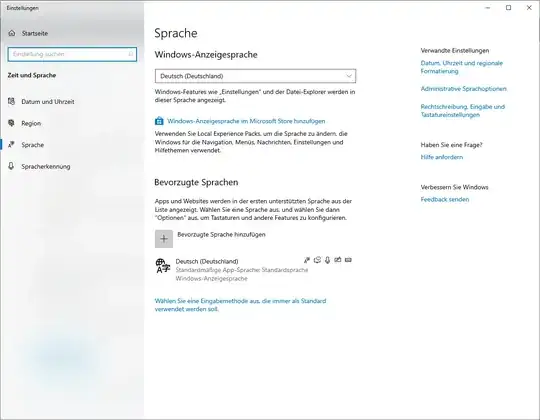
enter image description here

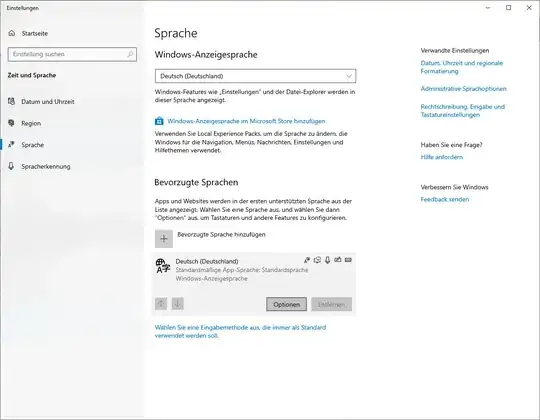
For each language, the user may define one or more keyboard layouts. First, the user clicks onto the language (next picture) and, then, she can choose "Optionen" ("Options" in English GUI?).
enter image description here

In the language options windows, the user can add different keyboard layouts. Swichting a keyboard layout does not impact app behaviour with respect to its language settings.

enter image description here

For each language one can define an individual set of keyboard layouts.

Which language and keyboard layout are selected?

Below are two screenshots of my Windows 10 taskbar. The top row in each picture indicates the system language (German ("DEU") in my case). The bottom row indicates the keyboard layout (German in the first and US-English in the second picture).

enter image description here

enter image description here

If there is only one row, it indicates the system language with default keyboard. Please correct me, if I am wrong with this.

  • 2
    this is the correct answer, I wonder why so few upvotes – Elouan Keryell-Even Feb 26 '21 at 03:26
  • The question really was about languages as far as I can tell, though. Ever since windows added language options, hitting alt-shift with multiple languages installed (e.g. EN + JP + DE) will cycle through your languages (e.g. EN -> JP -> DE -> EN). However, sometimes Windows 10 breaks itself, and even though the alt-shift key is clearly set as the cycling hotkey, it instead pops up the little overlay that shows all your languages, while refusing to cycle to the next one at all. – Mike 'Pomax' Kamermans Dec 14 '23 at 18:32
3

For me this worked (Late Answer, but I hope it will be helpful for future visitors):

  1. Search for Setting --> Time & Language --> Language
  2. Spelling, typing, & keyboard settings --> Advanced keyboard settings
  3. Language bar options
  4. Advanced Key Settings --> Between input languages --> Change Key Sequence --> Left ALT + Shift

You can also search for Advanced keyboard settings directly and make your way shorter.

1

I had the same problem when adding a 2nd keyboard layout. I deleted the 2nd layout, installed a complete 2nd displaylangue containing the 2nd keyboard layout and the problem is solved.

Shift+tab only seems to work when switching between keyboard lay-outs in different display language on my machine. Perhaps you have the same issue.

Johan A.
  • 129
  • 3