4

I want to assign a color to bullets without changing the text color. For the moment, to do it :

  • I change the text color which changes the bullet color
  • Then I re-change the text color except the first character, so the bullet remains colored
  • Finally I delete the first character and I rewrite it uncolored

Is there a faster and easier way to only change the bullet color?

Oliver Salzburg
  • 87,539
  • 63
  • 263
  • 308
Nicolas
  • 1,037

4 Answers4

8

Change the bullet colours as follows:

  1. Press F11 to open Styles and Formatting.
  2. Click the A to switch to the Characters formatting.
  3. Right-click Bullets.
  4. Select Modify.
  5. Click Font Effects.
  6. Set the Font color to the desired colour.
  7. Click OK.

The bullets in the bullet lists are now the desired colour.

Dave Jarvis
  • 3,238
  • Make sure the character style in "List Styles" is set to Bullets for this to work. Alternatively, change it to the desired character style. Thanks for this, @Dave Jarvis :-) – Druckles Aug 24 '17 at 13:56
2

If you want to change specific bullet you can do the following;

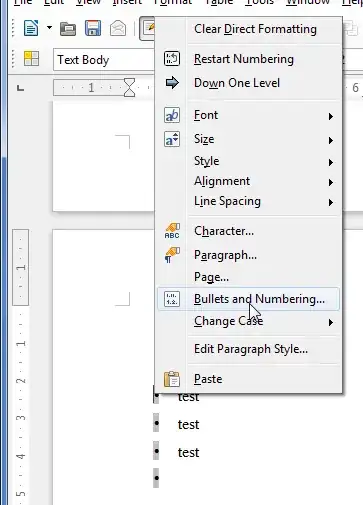
  1. Select the bullet point(s) to change, then right click of the selected point(s) and select Bullets and Numbering... from the menu

    Change specific bullet formatting

  2. From the Bullets and Numbering window, select the Graphic tab, and choose a colour bullet. I've tried looking through the menu, but couldn't find another of changing the bullet colour other than using a graphic.

    Select a graphic for a bullet style

Further still you could modify the style for the bullet points, perhaps allowing you to switch between styles much easier. Click F11 to bring up the Style and Formatting window, then select the List Styles icon, and modify or create any style you want there. This blog post might be of interest for further reading, World Label Blog - 9 Tricks for Using List Styles in LibreOffice/OpenOffice.org

wonea
  • 1,847
  • Thanks for your answer. Changing the bullet style in «Bullet and Numbering» → «Options» tab is the solution to my problem. It allows to change the font size, font and color of the bullets only. – Nicolas Mar 29 '13 at 09:35
1

You can apply any desirable character style (font, color, size, etc.) to a bulleted list by choosing a predefined character style in Format -> Bullets and Numbering -> Customize tab. There you can also change the bullet character itself.

This will customize the currently selected list only, but there is also a default character style for all bulleted lists called "Bullets", so you can change the color of the bullets for all your lists in the document at once by modifying this character style. Also you can create your own new bulleted list styles (with a set character style and other options) and then just apply them where necessary.

1

The default character style for all bullets is Bullets, as explained by Dave Jarvis and vstepaniuk. If you want to create a custom list with custom non-graphical symbols, and with any colour you would like, you need to do the following:

  1. Create a custom character style for your bullet points
  2. Create a custom list (or edit an existing one)
  3. Assign the custom character style to your bullet list

1. Create a custom character style

  1. Open the Style Manager by pressing F11
  2. Select Character styles
    Selecting character styles
  3. To keep all your bullet styles within the same hierarchy, right-click Bullets and select New.
    Right-clicking Bullets style and selecting New
  4. In the first tab, give the new style a suitable name, such as ‘Orange bullets’
    Giving the bullet style a name
  5. In the Font effects tab, under Font colour, select the desired colour.
    Selecting the desired colour in the Font colour menu.
  6. Click OK to accept the changes.

2. Create a custom bullet style (or edit an existing one)

  1. Open List styles by pressing F11, then select List styles from the top menu.
    Selecting List styles
  2. Right-click in an open area of List styles, then select New;
    Selecting New from the List styles’ open area.
    or right-click an existing list style and select Edit.
    Right-clicking an existing style to edit it.
  3. In the first tab (if you created a new style), give the style a descriptive name.
    Giving the list style a descriptive name.
  4. Navigate to the last tab, and select the number style you want; this can also be a symbol. To select a symbol, click the top most menu option, then select Bullet characters.
    Selecting symbol from the Number menu.
  5. If selecting Bullet characters, a new option is displayed allowing you to select the character you desire. Click the button.
    Character selection button.
  6. In the new window, select the desired symbol. You can type to find specific characters (it can be any character you like). Press OK when you have found the desired character.
    Character selection dialogue box.
  7. You are now back to the List styles dialogue box. From the Character style drop-down menu, select your previously created character style; mine was called ‘Oransje punktteikn.’
    Selecting the newly created bullet points style.

3 Applying the new style.

  1. As you write, create a list as normal. Either write some text that you intend to make a list, then select the style (explained below), or click the bullet list icon to begin making your style; either method is fine.
    Bullet list icon: Bullet list icon
  2. If you prewrote your list, make sure to select the text area which you want to have the new list style applied to; if you preformatted it as a list, you still need to select the entire area you want reformatted to your new list style, as it applies per paragraph; and if you haven’t begun writing your list yet, just place your cursor where you want the new list style to begin.
  3. When you are ready to format your list with the new, cool style, press F11 to open the Style Manager again.
  4. Select List style as previously.
    Selecting List styles
  5. Double-click the desired list style.
    Selecting and applying the new list style.
  6. Your list will now be formatted with your new list style, which will include the colour formatting you added to that list.

The result

The below sample demonstrates the new page with the custom bullet list with custom bullet point colouring applied.

Sample page showing new custom list with custom bullet point colouring applied.