0

Is it possible to set different margin color and leave the workspace white ?? Because some text and pictures need to add there.. I look up and haven't found anything related to this except for this article which is completely opposite from what i want. How do I set the paper color in LibreOffice Writer?

Thanx in advance

2 Answers2

0

In Tools > Options > LibreOffice > Application Colors > Custom Colors > Application background, you can set the background of the margin. If you want to set other colors, you can also change them here. After you are finished, you can save as a custom color scheme to reuse later.

yxz
  • 36
  • 4
  • It makes the whole background colored of libreoffice writer except the document itself . What i want is to have 4 margins colored in my document. – Jims-Rc Apr 23 '23 at 11:49
  • so you want the (inner) edges of the page to be a custom color right? If so, I believe you may have to set it on a per-document basis (maybe a default could be set, but existing documents may need to be changed by hand) – yxz Apr 23 '23 at 12:05
  • could you explain me how i should do it ? – Jims-Rc Apr 23 '23 at 12:11
  • @Jims-Rc You can set the document background in Custom Colors > Document Background and override that at Format > Page (Alt+Shift+P) > Page and deselect Background covers margins, then go to Area (in the same window) and select a custom color (overrides setting in Custom Colors). Not that I would recommend this as Page formats are saved in the document and custom colors are saved in Writer. But if you need this, it is kinda possible. – yxz Apr 23 '23 at 12:28
  • no. i want outside edges. sorry for the inconvenience. here i uploaded the file. please check. [ https://ibb.co/1d28rwq ] I'm not very fond of office in general man. just started to learn libreoffice. doing this for practice. – Jims-Rc Apr 23 '23 at 19:15
  • @Jims-Rc so you would like to set a style that is printable right?, In that case, looking at MS word's templates they are using a picture as the border. You could also set a border but it would only be a line – yxz Apr 24 '23 at 00:39
0

This can be done on a per-document basis without a background image by using a frame. Whether the result can be printed without an unprinted margin will depend on capabilities of the printer.

First, in Page Style..., set the margins on the Page tab and also set the color of of the margins on the Area tab. This will set the whole page background to the selected color.

Then, select Insert > Frame > Frame... and do the following:

  1. Click the Type tab and...
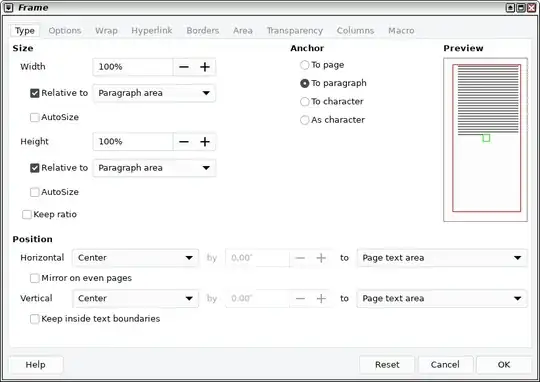
  • In the Anchor section, select 'To paragraph'
  • In the Size section:
    • uncheck 'AutoSize' and 'Keep ratio' settings
    • set both Width and Height to 100% relative to 'Paragraph area'
  • In the Position section
    • uncheck both boxes
    • set both Horizontal and Vertical to 'Center' and 'Page text area'

In short, the resulting settings should look like this... Frame dialog box Type tab settings
  1. Click the Wrap tab and set all Spacing values to 0.0.
  2. Click the Borders tab and click the leftmost Line Arrangement Preset to select no borders.
  3. Click the Area tab and set the color to white.

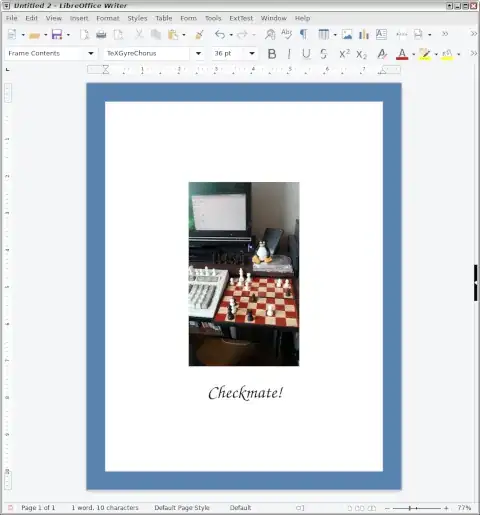
The page should now consist of a white document area and color margin.

Finally, put all of your document content into the frame. enter image description here