15

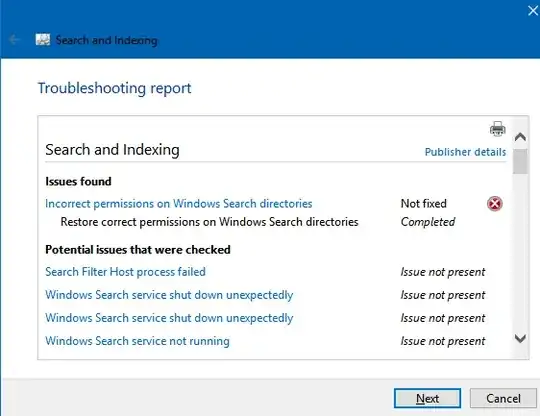
I installed many new programs and they don't appear in Windows Search. Also search does not show new mail and files. I ran Search and Indexing Troubleshooter and it found "Incorrect permissions on Windows Search directories", but did't able to fix it. It happened after upgrade from Anniversary Update to Creators Update.

Screen1

Screen2

I already asked this question on the Microsoft Community, but they don't know anything except sfc/scannow (and it doesn't help either)

magicandre1981
  • 98,168
  • 30
  • 181
  • 248
datafile4
  • 161

5 Answers5

6

Take complete ownership of the path C:\ProgramData\Microsoft\Search\Data and check the issue status.

a. Open a folder with protected system files

b. Right-click on a file and click on Properties

c. Go to the tab Security

d. Click on Permissions to take ownership of the file

e. At the top click on the hyperlink Change owner:

f. Now enter the username of your account. Optionally click on Check names to verify that the name is correct

g. It should now list YOU as the owner of the file. CLICK ON APPLY

h. Select your username from the list (back on the Security tab) and click on Edit. Confirm the UAC prompt

i. Select your username again and check the box Full Control

j. Click on Apply

  • This worked for me. Make sure SYSTEM has full control also. – matt wilkie Sep 27 '18 at 17:21
  • Note: the indexing location might not be on C:, for me it was D:. It is displayed in Indexing Options – Extended. – Felix Dombek Oct 13 '18 at 15:01
  • ...but it actually didn't work for me. Also the system resets the owner to SYSTEM. – Felix Dombek Oct 13 '18 at 15:08
  • @Jefferson Lima I am having the same problem. Unfortunately there is no C:\ProgramData on my drive and under Program Files I cannot find anything like "Microsoft\Search\Data" Do you have any idea where I have to look? My search function is of course down... – And Sep 20 '19 at 09:01
  • @And C:\ProgramData is hidden, you have to enable Show hidden files: https://support.microsoft.com/en-us/help/14201/windows-show-hidden-files – Koraktor Jan 21 '20 at 09:17
  • You can change the directory location of the index file from Control Panel -- > Search . I have C:\ProgramData\Microsoft but not C:\ProgramData\Microsoft\Search even as hidden either. One alternate location is defined to a more secure place by your company, such as C:\Users<your login id>\AppData\Local\Microsoft\Search\Data . However fixes permissions for me failed in there and files are getting updated, so even though the Windows Repair Tool claims when run with Admin rights that problem is with directory permissions, that is not correct root cause. I don't know where the alternate – Timo Riikonen Apr 17 '20 at 06:36
3

After 2 days trying to solve it, I did it.

What helped me was:

1. Disable and re-enable the search feature using CMD:

dism /Online /Disable-Feature /FeatureName:"SearchEngine-Client-Package" (after you disable it you need to restart windows).

dism /Online /Enable-Feature /FeatureName:"SearchEngine-Client-Package"

2. Reinstall Cortana Search App from Powershell

a. Press WIN+X keys together to launch WIN+X menu and then click on Command Prompt (Admin) option. It'll open Command Prompt as Administrator.

b. Now type Powershell in Command Prompt window and press Enter. Wait for a few moments and Powershell session will be initiated in Command Prompt window.

c. Now type following command and press Enter:

Get-AppxPackage -Name Microsoft.Windows.Cortana | foreach {Add-AppxPackage -register "$($_.InstallLocation)\appxmanifest.xml" -DisableDevelopmentMode}

3. Now open configuration > Cortana and select permissions from the left list. Now activate Cortana and what it can do. After doing this, my search worked again.

I hope it helps you guys! :)
  • Yes! Updated instructions
    1. Press WIN+X and start Powershell with admin permissions and execute:

    dism /Online /Disable-Feature /FeatureName:"SearchEngine-Client-Package" (don't restart windows). dism /Online /Enable-Feature /FeatureName:"SearchEngine-Client-Package" (don't restart windows)

    1. Reinstall Cortana Search App from Powershell

    Get-AppxPackage -Name Microsoft.Windows.Cortana | foreach {Add-AppxPackage -register "$($_.InstallLocation)\appxmanifest.xml" -DisableDevelopmentMode}

    1. Possibly you need to change some Cortana settings, not sure.
    2. Restart Outlook
    3. Test
    – Timo Riikonen Apr 17 '20 at 06:54
  • after first script restarting is necessary – Wachburn Nov 03 '20 at 19:01
0

I created new user profile and search works properly under it. Solution is to create new user profile and delete old.

datafile4
  • 161
0

I had the same issue, for example nothing inside my Google Drive directory could ever be found.

Jefferson's answer didn't work for me because Windows will overwrite the permissions of the data folder again, and the error saying Incorrect permissions on Windows Search directories also didn't go away.

But I could solve the issue by changing the Google Drive folder permissions. It was set to allow access for my user account only. As soon as I granted read access to the SYSTEM user, everything in there could be indexed.

So, make sure that SYSTEM can access the locations in which you want to search! This is done by right-clicking on the folder, Properties, tab Security, Edit, Add, type SYSTEM, confirm all dialogs.

Felix Dombek
  • 2,063
0

Cross-posting the solution from another thread regarding a related issue because this was the first result on google and maybe future people will find the solution more quickly this way:

If you have Background Apps disabled, you'll want to enable those in general. You can still disable all individual apps's background permissions, but the global toggle needs to be active.

Go to "Settings" > "Privacy" > From the left sidebar, go to "Background apps" and enable that global toggle if it was previously disabled. If you want to, you can still disable the individual background permissions for each app from this page.

In my case, this was disabled from my O&O Shut Up profile, so if that is the cause for you, you'll want to update the profile so you don't disable it again the next time you run OOSU.

Source: https://superuser.com/a/1235127/613277

Tobl
  • 101
  • If this question is a duplicate one, just flag it as duplicate. – Toto Aug 04 '22 at 11:07
  • If you look at the other thread, you'll note that a different problem is presented, it just happens to be that the solution from that thread was able to resolve my problems that match the issues presented here. – Tobl Aug 04 '22 at 13:13