1

This is my requirement:

Here, I have taken a single line of text column with 2 spaces in the column field. I have used that column as a reference in a calculated column. By using a formula I can able to replace the first space but I can not able to replace all the remaining spaces. I want every space to fill at the same time. what will happen if I take a column with 4-5 spaces. how to replace all spaces? Is there any way to do it?

Formula:

=IF(ISNUMBER(FIND(" ",[ Employee Contact number])),REPLACE([ Employee Contact number],FIND(" ",[ Employee Contact number]),1," -"),[ Employee Contact number])

enter image description here

Ganesh Sanap - MVP
  • 44,918
  • 21
  • 30
  • 61
  • Do you just want to show the replaced number in list view (for display purpose) or are you going to use it somewhere else in your project (like filtering/sorting list views, power apps, power automate or anything else)? – Ganesh Sanap - MVP Jul 25 '23 at 09:35
  • I want to replace every space with a hyphen in the mobile number column. If we want to replace the second space we should have to create another calculated column taking the mobile number column as a reference. Instead of that, I want to replace every space using single formula at a time.is it possible ? – Chandrika Kambala Jul 25 '23 at 10:53
  • I understood your requirements from your question. But I want to know how you are going the calculated column values in future? Will those be used for list view filtering/sorting or in integration with any other services as mentioned in my above comment? – Ganesh Sanap - MVP Jul 25 '23 at 11:01
  • I want it for displaying purpose in a list view. – Chandrika Kambala Jul 25 '23 at 11:13
  • Thank you so much for your valuable time and solution – Chandrika Kambala Jul 25 '23 at 17:22
  • Hi @Chandrika, is below solution working for you? If yes, please Upvote(^) and accept it as an Answer (by clicking the "checkmark" button underneath the vote buttons) as it helped you & it will help others with similar question in future to find the correct answer easily, thanks! – Ganesh Sanap - MVP Aug 10 '23 at 08:03

1 Answers1

0

Unfortunately, there is no function available in SharePoint calculated column formulas which will replace all spaces from column value automatically.

SharePoint calculated column formulas supports REPLACE function which replaces only one instance of the space character at a time.

So, if you want to replace multiple space characters, you will have to replicate the same REPLACE function logic for all spaces.

You can find some similar questions for more information at:

  1. Calculated Column Formula how to replace Substitute
  2. Sharepoint function to replace multiple characters
  3. replace text with formula in calculate

Additional:

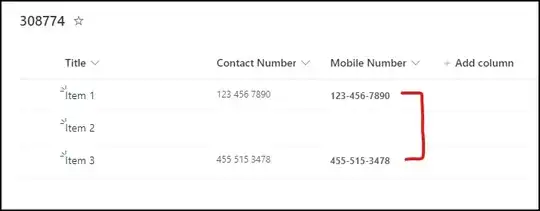
If you just want the replaced mobile number for display purpose in SharePoint list view only, you can use JSON formatting for your requirements.

  1. Create a calculate column using simple formula like: ="Mobile Number"
  2. Then apply JSON column formatting to your calculated column and use below JSON:
{
  "$schema": "https://developer.microsoft.com/json-schemas/sp/v2/column-formatting.schema.json",
  "elmType": "div",
  "txtContent": "=replaceAll([$ContactNumber], ' ', '-')",
  "style": {
    "font-weight": "bold"
  }
}

Where ContactNumber is the internal name of column with spaces in it. You can get the internal name of your column by following this article: How to find the Internal name of columns in SharePoint Online?

Follow the steps given here to apply JSON column formatting: Use column formatting to customize SharePoint

Output:
enter image description here

Reference: SharePoint: Replace All Occurrences of Substring in a String using JSON Formatting

Ganesh Sanap - MVP
  • 44,918
  • 21
  • 30
  • 61