0

I am looking to add "previous" and "next" buttons to the standard display and edit forms on a SharePoint list. They need to function according to whichever view they are opened in. I've tried the solution in this post:

Adding a "next" Button to displayform.aspx

However, the top answer created a "next" button, but clicking it didn't do anything. The other jquery-based answer created a "next" link, which broke upon clicking.

I'm not familiar with Jquery other than being able to add existing code to a snippet web part, so keeping your answer as basic as possible in terms of code knowledge would be greatly appreciated. Thank you!

dberger
  • 51
  • 1
  • 4
  • And you did not try the 3rd answer, which doesn't require jQuery? Yes, it looks complex and you have to sit down and spend an hour on it, step by step it gets you a very flexible prev/next – Danny '365CSI' Engelman Apr 27 '17 at 15:09
  • Yes, I tried that answer as well, to no avail. The formula didn't create the necessary buttons in the view as described. – dberger Apr 27 '17 at 16:17
  • Are you comfortable with adding JavaScript in a CEWP on a Form? – Danny '365CSI' Engelman Apr 27 '17 at 17:17
  • Yes, I've done this plenty of times - any input on a solution using this method would be fantastic. – dberger Apr 27 '17 at 18:21
  • The first step is creating a Calculated Column and checking the contents in a View, I just re-checked that code from almost 2 years back.. works fine. What error do you get in the F12 console? – Danny '365CSI' Engelman Apr 27 '17 at 18:31
  • The code works on a dev site, but not my actual production site. The page gives the following error: "No item exists at (url). It may have been deleted or renamed by another user". The F12 Console says "The attached page targets document mode 8. Some console APIs and features may not be available". My process for adding the URL and deploying the code via snippet web part was the same across my dev site and production site. Thank you again for your help with this. – dberger Apr 28 '17 at 13:36
  • Yes if you force the browser back to IE 8 mode no modern JavaScript will work. I am going to give the Microsoft answer: We ended support for all browsers below IE10 on january 12, 2016 !! : https://www.microsoft.com/en-us/windowsforbusiness/end-of-ie-support – Danny '365CSI' Engelman Apr 28 '17 at 14:57
  • I'm not sure why that is happening, as I am using IE11 for both the site where the code works and the site where the code doesn't work. I deploy it the exact same way on my test site collection and it works fine - but it breaks and gives that error on my actual live site collection. Any idea why it would do this for one site collection and not the other, when all other variables are consistent? Both collections are on the same farm as well. – dberger Apr 28 '17 at 17:08
  • The error says "The attached page targets document mode 8", so something is forcing the browser to run in the wrong mode. Check F12 – Danny '365CSI' Engelman Apr 28 '17 at 17:59
  • Did some further tweaking - got the code to run, but not nearly as intended. The "next" instead functions as a "previous", and pulls the next item by ID, instead of the next item in the current view. Any ideas as to how to tweak the code to fix this? I am using the shorter code out of the 2 posted in that link. Still having no luck at all with the longer answer. In the longer jquery answer, the "next" button is created, but has no function when clicked. – dberger May 01 '17 at 13:15

1 Answers1

0

Let's continue with the correct code in an answer:

Re-doing the 2 year old post: Adding a "next" Button to displayform.aspx

Step #1 - Verify the Formula

The Formula:

="<img src=/_layouts/images/blank.gif onload=""{"
&"var TR=this;while(TR.tagName!='TR'){TR=TR.parentNode}"
&"var TABLE=TR;while(TABLE.tagName!='TABLE'){TABLE=TABLE.parentNode}"
&"var n=TR.rowIndex;"
&"var item=ctx.ListData.Row[n-1];"
&"var prev=n>1?ctx.ListData.Row[n-2].ID:false;"
&"var next=TABLE.rows.length-1>n?ctx.ListData.Row[n].ID:false;"
&"var thisID=GetUrlKeyValue('ID');"
&"if(thisID==TR.id.split(',')[1]){"
    &"var url='<div style=float:{2}><a href='+document.location.pathname+'?ID={0}>{1} (ID:{0})</a></div>';"
    &"var prevHTML=prev?String.format(url,prev,'Previous','left'):'<div style=float:left>This is the first Item</div>';"
    &"var nextHTML=next?String.format(url,next,'Next','right'):'<div style=float:right>This is the last Item</div>';"
    &"var HTML=String.format('<div style=position:relative;margin-top:0px>{0}  This ID:{2} {1}</div>',prevHTML,nextHTML,thisID);"
    &"this.parentNode.innerHTML=HTML;"
&"}else{"
    &"this.parentNode.innerHTML=String.format('prev:{0} next:{1}',prev,next);"
&"}"
&"}"">"

Should display in a View for any List it is added to as:
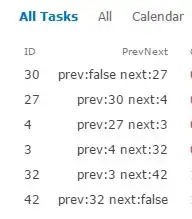
Step #2 (only after Step #1 !!)

To add this to a Form page, see all steps in: Adding a "next" Button to displayform.aspx

Danny '365CSI' Engelman
  • 21,176
  • 7
  • 35
  • 79
  • I have tried this solution as well. The previous/next buttons do not work on a larger list, and still pull using ID. They did not adapt to the view. I would like for the next button to be able to detect whichever item is next in the current view, not in the overall list by ID. – dberger May 01 '17 at 17:15
  • The larger list issue is probably due to the default SharePoint Item View Limit=30. Set it to a higher value. ( I take it from this you are not a medior level SP View user/creator) – Danny '365CSI' Engelman May 02 '17 at 07:25
  • Any ideas as to how to get it to adapt to the view the item was selected from? I know this is tricky, as the editform.aspx is entirely separate from the list view. Thank you again for all your responses - I'm sorry this is so difficult. – dberger May 02 '17 at 12:45
  • The steps from the original post adds it to the Form. If that's not enough you have to go the CSR (Client Side Rendering) with Chrome Extension Cisar route then and built from scratch with JavaScript – Danny '365CSI' Engelman May 02 '17 at 13:26