I have a mesh I generated by converting a beveled curve to a mesh. The result is very useful, but I would like to make one curved part of it flat. Can this be done without selecting each face and moving it?
Asked
Active
Viewed 3.4k times
14


-
3Just a tip. You can flatten the selected vertices to a certain axis by hitting s to scale then selecting the axis then hitting 0. Scaling to zero flattens. Try it out. – Adam Masters Nov 30 '13 at 20:23
2 Answers
11
You can do this fairly easily if you use proportional editing and scaling.
Turn on proportional editing:

Select the top layer of vertices using box select:

Scale (S) along the Z axis (z) then press 0 to scale it it flat. Scroll your mouse wheel to adjust how much of the mesh it affects:

And you get:

If your curve isn't flat like in the previous example, it's still possible, it just takes a little more work.
Select the edge loops around the area you want to flatten (using Alt Right click):

Pull them out to be flat with the middle edge loop.
Shift-Select the middle edge loop and push all of them in:

Continue tweaking it until it's flat enough:


4
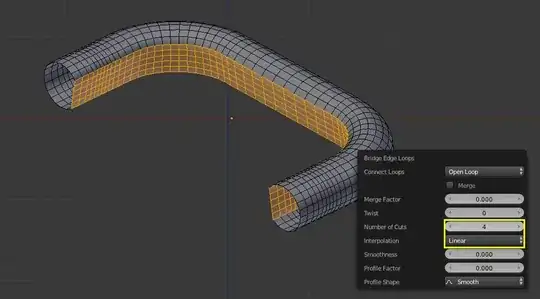
- Select the faces you want to flatten, then delete;
- Select the two border lines, press W > Bridge Edge Loops, to create linked faces between them;
- Press F6 to tweak number of cuts for the flat-curved faces.


Leon Cheung
- 27,718
- 11
- 89
- 161