I have a question about Thunderbolt.
the snapshot introduces Thunderbolt 3.

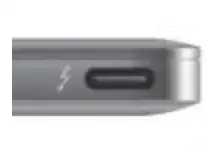
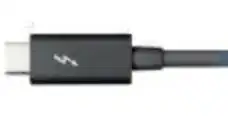
you see there are two parts:
- socket
- plug
I want to know the Thunderbolt refers to the socket or the plug? or both?
I have a question about Thunderbolt.
the snapshot introduces Thunderbolt 3.
you see there are two parts:
I want to know the Thunderbolt refers to the socket or the plug? or both?

Actually it's neither.
The plug is a USB-C connector.
The socket is a USB-C socket.
Thunderbolt 3 is the specification that details the pin-layout, signals, cable requirements, power and protocols that, amongst other things, makes it possible for those connectors, plugs and cables in the picture to enable the functionality mentioned.
You can read a more in-depth description in this technology brief:
https://thunderbolttechnology.net/sites/default/files/HBD16235_Thunderbolt_TB_r05.pdf
The brief is a bit more technical than just the illustration, but still at a level that can be understood without being a computer engineer.

Thunderbolt is the protocol, and the physical connectors it uses are USB-C and mini-DP. For those that remember the old Ethernet plugs this is kind of like the old use of BNC vs. RJ connectors. They were both Ethernet but in different physical form, which had different specifications on cord length and data bandwidth, but so long as one had the right kind of cables, hubs, and adapters everything could talk to each other without any major issue.
Where this analogy breaks down is that USB-C has more power and alternate modes. USB-C and mini-DP would both often offer a DisplayPort alternate mode, but this is "often" which means not always. A DisplayPort cable can be used for both USB-C and mini-DP if that is a supported mode to get video. USB-C allows sufficient power to pass to power the display from the host, or the host from the display, but mini-DP does not. USB-C also allows for USB data to pass between host and display along with DP and TB data. With mini-DP this USB communication is possible with additional hardware in both the host and display, with the USB data being encoded within the TB data stream.
Thunderbolt, or TB, is a protocol that is built in a way to share the data and power path with other compatible protocols built for the same port. On USB-C TB can share the cable with DP and USB. In theory other protocols are possible, like MHL, but I have not seen that put to use. TB on mini-DP allows sharing the cable with DP and protocols that fit within TB. There's some power on the mini-DP cable but it is quite low, and this power only flows from the host to the adapters.
Thunderbolt comes in different versions, much like USB, which each version adding bandwidth and other features. The big one is speed. TB1 is 10 Gbps, TB2 is 20 Gbps, TB3 is 40 Gbps, and TB4 is also 40 Gbps but adds some security features, makes some features mandatory that were optional with TB3, and supports USB4 packets alongside DP and TB packets.
Because TB is different than the other protocols used on mini-DP and USB-C ports the cables required to use TB can be different. TB data needs a cable certified for TB, though sometimes a well made USB-C or mini-DP cable will work as normal or with reduced speed. The host and device will negotiate the speed the cable will allow, and this speed should be visible with the right kind of diagnostic tools for those curious.
That may be more than what was asked for but I'm trying to be complete and concise. If you want to see TB performance from your TB ports then use TB certified cables and devices. If backward compatibility is desired then use DP cables and devices, USB cables and devices, or whatever the case may be. Mixing up the cables may or may not work. Feel free to experiment if you like on mixing up cables since it will not hurt anything, but just be aware that using USB cables on TB may work but at lower bandwidth.
Oh, and the different cables should be identifiable by use of icons on the cable ends. TB uses a thunderbolt symbol and may have a number indicating the version it supports. USB will have a trident and often a number to show the Gbps it supports, those being 5, 10, 20, or 40. DP cables will have a stylized DP to indicate support.
There is still more to be said but that's plenty, I believe, for now.
