0

Apple's Disk Utility app can format an SD card as MBR FAT32; but in the Terminal, I confirmed the SD card's partition is in fact 0x0B:

> sudo gpt show /dev/disk3

start size index contents 0 1 MBR 1 2047
2048 62746624 1 MBR part 11

"MBR part 11" refers to 0x0B. I want the partition to be MBR part 12 (0x0C).

I then tried this in the Terminal:

> diskutil unmountDisk /dev/disk3
Unmount of all volumes on disk3 was successful

> sudo fdisk -ia dos /dev/disk3 fdisk: could not open MBR file /usr/standalone/i386/boot0: No such file or directory

-----------------------------------------------------
------ ATTENTION - UPDATING MASTER BOOT RECORD ------
-----------------------------------------------------

Do you wish to write new MBR and partition table? [n] y

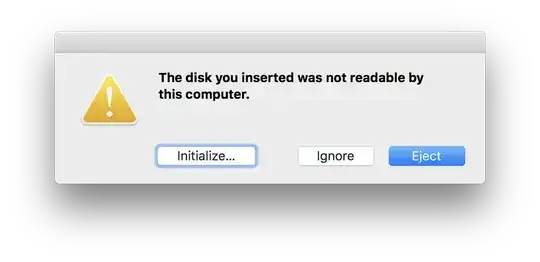
But if I click the "Initialize..." button, it merely opens the Disk Utility app, which I know will only format as MBR FAT32 0x0B.

How can I use MacOS Terminal or another Mac app (not Windows or Linux) to format the SD card as MBR FAT32 0x0C?

JDW
  • 23
  • 1
  • 1
    @user3439894 Thank you very much. I formatted my SD card using "Overwrite format" and upon checking it in the Terminal, I see it is now "MBR part 12" (0x0C). Perfect! – JDW Mar 17 '21 at 04:27
  • @user3439894 The big caveat I found with your recommended Formatter app is that it has no preference settings and you therefore cannot know what you are going to get in the end. With a 32GB card, I got a FAT32 Type 12 partition, which is what I needed. But after it formatted a 128GB card, I found it was Type 7 (exFAT?). So the app doesn't reliably give you Type 12 for every SD card. It varies by card size. – JDW Mar 18 '21 at 01:05

2 Answers2

2

If macOS defaults to type 0B and you wanted 0C, then you do not need a third party tool to make the change. Just use the command fdisk with the -e option to make the change. In your case, the commands would be as follows.

diskutil unmountdisk disk3
sudo fdisk -e /dev/disk3
s 1
c
q

Note: The diskutil unmountdisk disk3 unmounts of all volumes on disk3. The fdisk -e /dev/disk3 command needs to entered immediately afterwards or the volumes may automatically remount. (In this case, there should be only one volume.) Failure to do so may cause a fdisk tp attempt a shared lock. If successful, then a y (for yes) will need to be entered after entering the q command.

An example is given below.

Marlin-3:~ davidanderson$ diskutil unmountdisk disk3
Unmount of all volumes on disk3 was successful
Marlin-3:~ davidanderson$ sudo fdisk -e /dev/disk3
Password:
fdisk: could not open MBR file /usr/standalone/i386/boot0: No such file or directory
Enter 'help' for information
fdisk: 1> s 1
         Starting       Ending
 #: id  cyl  hd sec -  cyl  hd sec [     start -       size]
------------------------------------------------------------------------
 1: 0B 1023 254  63 - 1023 254  63 [         2 -    1953186] Win95 FAT-32
Partition id ('0' to disable)  [0 - FF]: [B] (? for help) c
fdisk:*1> q
Writing current MBR to disk.
Marlin-3:~ davidanderson$ 

The rest of this answer is just background information. You can skip if you like.

The fdisk command with the -e option is interactive. The s command is short for setpid and the q command is short for quit. Below is a list of the interactive commands. This was taken from the output of man fdisk.

help    Display a list of commands that fdisk understands in the interac-
         tive edit mode.

manual Display this manual page.

reinit Initialize the currently selected, in-memory copy of the boot block.

auto Partition the disk with one of the automatic partition styles.

disk Display the current drive geometry that fdisk has probed. You are given a chance to edit it if you wish.

edit Edit a given table entry in the memory copy of the current boot block. You may edit either in BIOS geometry mode, or in sector offsets and sizes.

setpid Change the partition identifier of the given partition table entry. This command is particularly useful for reassigning an existing partition to OpenBSD.

flag Make the given partition table entry bootable. Only one entry can be marked bootable. If you wish to boot from an extended partition, you will need to mark the partition table entry for the extended partition as bootable.

update Update the machine code in the memory copy of the currently selected boot block. Note that this option will overwrite the NT disk signature, if present.

select Select and load into memory the boot block pointed to by the extended partition table entry in the current boot block.

print Print the currently selected in-memory copy of the boot block and its MBR table to the terminal.

write Write the in-memory copy of the boot block to disk. You will be asked to confirm this operation.

exit Exit the current level of fdisk, either returning to the previ- ously selected in-memory copy of a boot block, or exiting the program if there is none.

quit Exit the current level of fdisk, either returning to the previ- ously selected in-memory copy of a boot block, or exiting the program if there is none. Unlike exit it does write the modified block out.

abort Quit program without saving current changes.

Note: The warning message fdisk: could not open MBR file /usr/standalone/i386/boot0: No such file or directory is correct. The /usr/standalone/i386/boot0 file is not part of macOS. Instead of reading this file, fdisk substitutes zeros. This results in the update command erasing any existing machine code instead of updating with actual machine code.
 

  • Thank you. I had to use "sudo fdisk -e /dev/disk3". But when it came time to type "q" at the end, I never saw "Writing current MBR to disk." And when I mounted the SD card and checked, the previous contents of the SD card were still there. My SD card was not locked. No issues with the third part app though. – JDW Mar 17 '21 at 08:30
  • JDW: I my original answer, if forgot to add the sudo. Often I test my answers on sparse images which do not require sudo. When I post an answer, I can forget to add back in the sudo. This was one such case. I did update my answer to include the part of the instructions for fdisk where the instructions explicitly state the q (short for quit) command does write the changes back to the drive. You are describing the actions of either the abort or exit commands, which I did not use. – David Anderson Mar 17 '21 at 15:24
  • JDW: I can post may accepted answers where the q command was used to write the changes back to the MBR. Two examples can be found here and here. I am not sure why you were unable to do so. Although, you could not have followed my original instructions, because of the missing sudo. – David Anderson Mar 17 '21 at 15:32
  • JDW: I realize you found a third party tool that solves your problem. I purpose in answering was for other (future) users with a similar problem. These users may not want to use a third party tool and instead opt for commands provided by macOS. – David Anderson Mar 17 '21 at 15:51
  • David, the 3rd party tool isn't idea because it has no settings and it changes the partition format based on card size. I discovered that yesterday. It cannot be used to reliably format any card of any size to 0x0C. – JDW Mar 18 '21 at 01:09
  • David, I am not an expert on the MacOS Terminal, so I defer to you on this. But what I reported yesterday remains true. I use MacOS High Sierra and the SD card was 32GB in size. After typing "q" I never received any message that said "Writing current MBR to disk." and I confirmed all the data that previously was on the SD card was still there. So why you and I are seeing different things is something I cannot say. – JDW Mar 18 '21 at 01:11
  • I am using High Sierra on a 2011 iMac. I tried my answer on a 32 GB SD card and did not encounter the problem you are describing. Occasionally, an answer will be posted where some users will comment that the answer worked and others will claim otherwise. Being your result differs from what the instructions say is suppose to happen, you may want to consider the idea that your SD card could be faulty. – David Anderson Mar 18 '21 at 05:36
  • 1
    For a "faulty" card, it certainly does record a lot of 1080p & 4K video as well as stills with my Panasonic GH5. Furthermore, it formats just fine in Disk Utility, and I can even copy data off my Mac to the card and then back again without any errors. And again, it formats as 0x0C just fine with that dedicated app. So if the Terminal commands you recommended require something more from a card than that, then perhaps using those commands is not really the best approach. But before you reply again, allow me to test other SD cards with your Terminal commands first. I will reply on that later. – JDW Mar 19 '21 at 00:22
  • 1
    David, no need for chat. I finally got your procedure to work today. I got the "Writing current MBR to disk." this time which I did not get in my testing before, for reasons unknown. I confirmed the SD format using "sudo gpt show /dev/disk#" that it is now MBR part 12 (0x0C), which is correct. Your post is now the Chosen Answer. Thank you for your help! – JDW Mar 22 '21 at 04:24
1

Your fdisk invocation should have already partitioned it as type 12. You can press the Ignore button and verify via Terminal that that's the case, then simply eject the disk from your computer and use it wherever you intend to use it.

If you intend to use this drive on your Mac, you will need to format and mount it after running fdisk:

sudo newfs_msdos /dev/disk3s1
sudo mkdir /Volumes/FLASH
sudo mount -t msdos /dev/disk3s1 /Volumes/FLASH

Here FLASH is an arbitrary volume name that I chose for sample purposes; feel free to choose your own.

As a clarifying point, the s1 portion of /dev/disk3s1 targets the first partition of disk3. If you were to specify just disk3 instead, the newfs_msdos command would overwrite the partition table.

pion
  • 4,827
  • My disk invocation did not already format it as Type 12. I confirmed it was Type 11. Perhaps it's because I am still using High Sierra. In any case, the formatter app recommended by @user3439894 in a comment under my opening post is the solution. – JDW Mar 17 '21 at 04:32
  • That sounds like a bug in fdisk, then. Worth filing (https://developer.apple.com/bug-reporting/) – pion Mar 17 '21 at 04:35
  • I tested in the Terminal on a different Mac just now, clicked "Ignore", and this time I could confirm it is Type 12. Strange. Even so, there is a problem. When I eject the SD and reinsert, I get the same dialog shown in my opening post about it being unreadable. If I click Ignore, I can work with it in the Terminal but I cannot mount it in the Finder. But when using "SD Memory Card Formatter for Mac," I get Type 12 and the ability to mount the SD card in the Finder without any error dialog. – JDW Mar 17 '21 at 05:01
  • @pion: The fdisk command does not format partitions. You can use fdisk to initialize or edit the MBR. Formatting takes place in the partition itself not in the MBR. – David Anderson Mar 17 '21 at 05:52
  • @DavidAnderson Just now I used fdisk -e to interactively modify the partition id of a partition on a flash drive that has an MBR partition map. So I'm not sure that I understand what you mean in your comment - can you please elaborate? – pion Mar 17 '21 at 06:07
  • @pion: The difference between 0B and 0C has to do with whether the partitioning information can be stored in the MBR using CHS or LBA. The actual format written to the partition does not change. – David Anderson Mar 17 '21 at 06:45
  • The way I read the OP's question, I think the OP actually thought the sudo fdisk -ia dos /dev/disk3 command actual FAT32 formatted the partition on the SD card. If fact, only the MBR was changed. The partition itself remained unformatted. This is why macOS put up the popup stating the disk was a unreadable. – David Anderson Mar 17 '21 at 06:55
  • You're right, I read it that way too. I'll amend my answer. – pion Mar 17 '21 at 07:04
  • @pion May I suggest you further edit your Answer to describe why you use "s1" at the end of "disk3" and explain that "FLASH" is clearly a placeholder word that must be exchanged for the actual volume? This extra info is important for Mac users coming here who aren't so familiar with the Terminal. Even I am not so familiar with it! :-) – JDW Mar 18 '21 at 01:08
  • 1
    @JDW Thanks for the suggestion. I've updated my answer. – pion Mar 18 '21 at 19:44