2

The Wi-Fi icon in the menu bar is displaying as empty. When I open Network Preferences and press “Turn Wi-Fi On”, nothing happens.

I have tried making the Wi-Fi service inactive, deleting it, then restarting the MacBook and adding the service back.

This fix actually worked, but the problem returned after about thirty minutes.

Since then, I have simply been repeating the process every time the Wi-Fi turns itself off, but it is very inconvenient and I hope it is not the only fix.

I’m afraid that the fact that the Wi-Fi turning itself back off again indicates that it’s a hardware issue.

After seeing a response to another user who had a similar problem, I have also tried using Terminal to “cycle the power to my wireless card”. It had no effect.

After restarting the MacBook again, it now says “Wi-Fi: No hardware installed” and will not let me create a new Wi-Fi service.

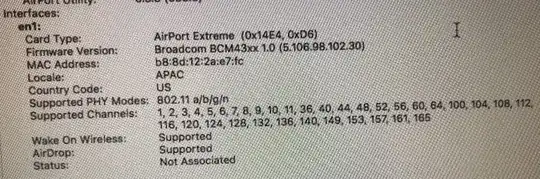
After another reboot I was able to turn WiFi on again, but it turned off after about ten minutes. I imagine that I will sometimes get “No Hardware Installed” again in the future.enter image description here
Marcus
  • 21
  • Could you check in the Console.app if there are any entries related to the wifi card? It might point you in the direction of the issue. – Saaru Lindestøkke Dec 09 '18 at 16:53
  • WiFi is off again and will not turn on. Whenever I press “Turn Wi-Fi On”, these two messages appear in Console: “Wi-Fi power is now off”; “Wi-Fi power changed (interface on: YES)” – Marcus Dec 09 '18 at 18:06

2 Answers2

0

Google's answer to "wifi no hardware installed mac"

This OSX Daily article from 2016 suggests that you need to reset your NVRAM and the SMC to solve the problem.

  • Could the downvoter add a comment on how I can improve this answer? – Saaru Lindestøkke Dec 09 '18 at 17:27
  • I saw that article before posting here, and I have tried resetting the NVRAM and the SMC. Unfortunately neither worked at the time, although I’m willing to try them again. However, I don’t know if doing so is still relevant; I am no longer getting the “No hardware Installed” message, the MacBook has returned to simply not turning WiFi on. – Marcus Dec 09 '18 at 18:12
  • @Marcus Well, it was not stated in your question that you tried that already, so I couldn't know. Please include the things you have tried in your question. No need to do preface it with "UPDATE". Just write it in your question to create a single, information packed question. – Saaru Lindestøkke Dec 09 '18 at 18:22
  • I’m sorry, your response leads me to believe that you think I am the one who downvoted you. I am not. Thanks for the advice; I will edit my question accordingly. – Marcus Dec 09 '18 at 18:29
0

Before we can declare your AirPort extreme WiFi card as dead lets try following.

  1. First take look at the hardware profile information in About this Mac > System Report > WiFi does it shows there. as for example...

Interfaces: en0: Card Type: AirPort Extreme (0x14E4, 0x117)

  1. To investigate possible Hardware problem run the Apple Hardware Test.

Hold D during boot.

When resenting the SMC pay attention to the magsafe light briefly flickering indicating the SMC rest worked.

  1. Reset your Modem and Router

  2. Create New Profile in the System Preferences > Network

Ruskes
  • 48,129
  • The System Report shows an Interface, en1. Everything seems normal, but it says “Status: Off”. – Marcus Dec 09 '18 at 18:10
  • well so it is there !...while I believe your judgment "Everything seems normal" I would like to take look, so please take a screen shot from the Top to the "current network" (do not need that part at the moment). – Ruskes Dec 09 '18 at 18:54
  • I’ve added the picture to the main post. The status now says “not associated”; it has been cycling between not being able to turn on WiFi, to being able to turn on but not able to connect to any networks, and “no hardware installed”. When I took the picture, WiFi was actually turned on, but it can’t connect to any networks. – Marcus Dec 09 '18 at 20:08
  • Thank you for that, do you mind telling me what is your Geo location (not the town, just the territory) – Ruskes Dec 09 '18 at 20:20
  • I’m in Iowa right now – Marcus Dec 09 '18 at 20:34
  • well, your Mac thinks you are in Asia :), so reset your cable modem/Router, then create new location in WiFi on the mac (in system preference > network) – Ruskes Dec 09 '18 at 20:36
  • Wow! That’s fixed it for now — thanks. I was living in Asia when I got the Mac, could that be why it got confused? I’ve been all over the world before now and never had this issue, plus I’ve using this particular WiFi network for a few weeks. How do I prevent this issue from happening again? – Marcus Dec 09 '18 at 20:41
  • Look for the Locale: FCC if you are in the US, or APAC if you are in Asia. In picture you posted. Then create New profile as I described before to avoid problems. – Ruskes Dec 09 '18 at 20:47
  • Unfortunately the issue has returned after only a few minutes. I tried repeating the fix (creating a new location), but it isn’t working this time. I’m no longer able to turn WiFi on. I should note that I didn’t reset the router because I don’t have access to it; it’s a university’s WiFi network. – Marcus Dec 09 '18 at 20:53
  • Does it still shows APAC ? instead of FCC – Ruskes Dec 09 '18 at 20:56
  • Yes, it was still showing APAC. I created yet another location and it still said APAC. I was going to try deleting WiFi and creating a new service, but as I was setting it up again, the computer crashed. When it restarted, it has gone back to saying “no hardware installed” and the system report no longer shows anything under WiFi. – Marcus Dec 09 '18 at 21:11
  • go to Coffee shop or Starbucks and try it there – Ruskes Dec 09 '18 at 21:39