51

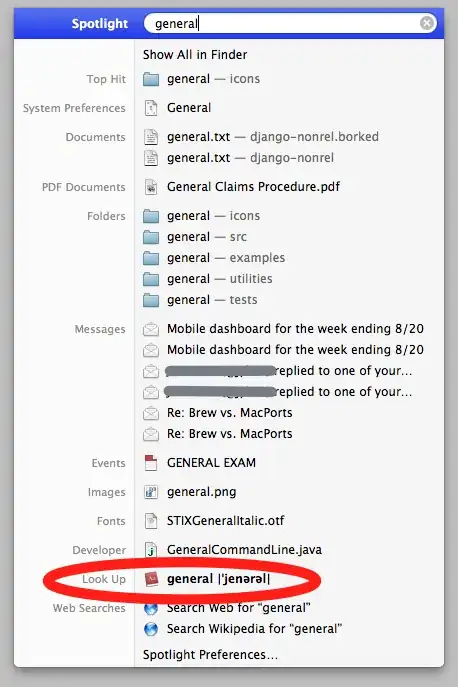
I used to use spotlight fairly frequently to quickly look up words in a dictionary. With Lion, I've noticed that my dictionary results have dropped down much lower in the list of results:

enter image description here

I'd like to bump up the priority of these results so they show up near the top of the list. However, looking at the system Spotlight preferences in Lion, I don't see an obvious way to do this:

enter image description here

How can I make Dictionary.app results show up higher in the list of Spotlight results?

emmby
  • 4,185
  • After much looking, I haven't discovered any way to get either. I've started using LaunchBar for my dictionary lookups, I have another hotkey for it - and it has a "Look up in Dictionary" command that pops up first hit for "loo". You can even make a custom abbreviation so whatever key you want searches the dictionary. It's not what you ask, but perhaps you'll be OK with alternatives if you can't yet bend spotlight to your will. – bmike Sep 16 '11 at 21:00
  • I realize this doesn't directly answer your question, but you may find satisfaction with a more robust application launcher. It's as easy as typing define '...'. I prefer Alfred, but Quicksilver is great too. – HaL Nov 02 '11 at 14:44
  • Lion supports double-tap 3 fingers action for dictionary lookup. I suppose you're using a Mac Pro and don't use trackpad then? – Tuan Anh Tran Jun 03 '12 at 02:22
  • Oh ho! That's nice! – emmby Jun 03 '12 at 20:55
  • Why would Apple remove this from the system preferences in Lion? Sometimes they do stuff and it makes no sense! :) – Jowie Aug 09 '12 at 07:00

3 Answers3

72

In 10.8+, you can open Spotlight, type in the word to look up, and press ⌘L to jump to the definition within Spotlight. Pressing ⌘D instead of ⌘L opens the definition of the typed word in the Dictionary.app.

Lri
  • 105,117
40

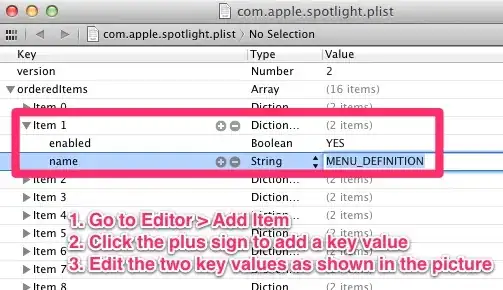
Finally, I found a hack! I wrote a blog post about this which you can find here (in Chinese).

These are the key steps:

  1. Open the file with Xcode:

    ~/Library/Preferences/com.apple.spotlight.plist
    

    If you do not have this file, change the order System Preferences → Spotlight which will cause the OS to create it.

  2. Within the orderedItems node, add a Dictionary item as follows: enter image description here

  3. Save the .plist file.
  4. Open System Preferences → Spotlight, you will find a blank entry, this is what we had added above. You can drag it like other entries to change the order as you like.

  5. You are done! Now type a word in spotlight and see what happened.

enter image description here

gentmatt
  • 49,722
ZHENJiNG LiANG
  • 644
  • 7
  • 4
  • I don't have the file ~/Library/Preferences/com.apple.spotlight.plist. – gentmatt May 31 '12 at 13:55
  • 2
    go to System Preferences → Spotlight, try reorder the items, close System Preferences, and the file will be created by the system. – ZHENJiNG LiANG May 31 '12 at 14:03
  • You are welcome! I grad that I can help. And finally I don't have to use CTRL+Down and UP and UP any more – ZHENJiNG LiANG May 31 '12 at 14:13
  • I've edited your answer and added the step to restart Finder. I had to apply this in order for the change to take affect. – gentmatt May 31 '12 at 14:37
  • 2
    Thank you for your edit, the answer looks much nicer. But it's not necessary to restart Finder, this has nothing to do with Finder – ZHENJiNG LiANG May 31 '12 at 14:44
  • That's what I thought as well, but for me the change did not take affect immediately. We can remove this part again as long as nobody complains. :) – gentmatt May 31 '12 at 14:47
  • Here was my experience on 10.7.5: I added it and it didn't take at first like @gentmatt. I went into System Preferences, rearranged an item, and then it took -- but it now shows up in duplicate, once where it originally was and now in the new place. I didn't want it twice, so I decided to set enabled to NO. Bad idea apparently, as this disables both of them. I then had to change enabled to YES, go back to spotlight and rearrange things again, then I was able to remove the key. – Matthew Boynes Sep 21 '12 at 13:04
  • I had trouble getting this to work in Mavericks 10.9.2. What did the trick was restarting after I saved the plist file. – Alex B Apr 09 '14 at 03:56
  • Unable to reorder items in system preferences in Mojave. So not sure how to generate the file. – Chucky Mar 08 '20 at 10:58
3

After a bit of searching, I don’t have a direct answer to your question. But I have a couple of possible fixes:

  1. Find your Dictionary in the Applications folder. Drop it in the dock. Highlight a word in whatever application you are working in, and drag and drop it into the Dictionary icon in the dock.
  2. Google makes the "Google Quick Search Box" (QSB) which is a lot like QuickSilver and LaunchBar (more like Quicksilver of the two). I think for your purpose, QSB is the best option. Google will give you Dictionary results quite readily based on some criteria. I found that if the definition was not immediately available, I could invoke it more explicitly by typing the word whose definition I am seeking followed by ‘definition’.

Here is a little more information about those ‘quick launch’ applications. Google’s QSB is free, quite capable, clean in appearance, but is a little sluggish. … LaunchBar is faster, pretty powerful, not as ‘pretty’, and costs around USD 25-40. Quicksilver has been discontinued, and the developer has recommended that users switch to LaunchBar.