58

I am using OS X 10.9. I am unable to drag Desktops from one screen to another, I am only able to switch arrangements on the screen that its on.

Here are my Mission Control settings

EDIT: Very strange, after a reboot the functionality seems to be working now without me making any changes.
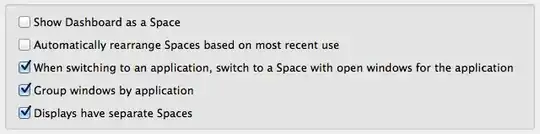
enter image description here

octosquidopus
  • 336
  • 1
  • 2
  • 11
Imran
  • 1,861
  • @Deesbek Sorry I should have included it in the post rather than just the tags, Im using Mavericks (10.9.1) – Imran Feb 06 '14 at 23:59

3 Answers3

156

You can only move non-active desktops between screens.

If the desktop you want to move is the only desktop on the screen, then create another desktop, make that the active desktop, and then drag the non-active desktop.

  • I have two screens side by side in landscape orientation, both same size and resolution. – Imran Feb 06 '14 at 23:19
  • 3
    Hmm. Trying again now, it appears my answer is either inaccurate or out of date: you CAN 'tear' a desktop off the upper rail, but only if it's not the currently active desktop. I'll edit it. – Wes Campaigne Mar 01 '14 at 20:27
  • 1
    Great, finally I can move the desktops to other displays. Indeed I only need to make another desktop active on a screen, to be able to drag it to another scree. My issue was when I unplug my mac from my other 2 displays, then sometimes when I plug it back I'd get the 2 displays swapped, while I have specific apps open on each of them. – Bogdan Jan 27 '15 at 09:08
  • @Bogdan The displays remember which port they were pugged in to on your Mac. If you swap the cables, it will swap the displays. – spex Apr 24 '17 at 13:46
  • @spex Thanks for bringing this up. It's been a long time since :). Now the settings are totally different, but I clearly remember the cables were always the same. It would make no sense to place them the other way around, especially on a MacBook where the ports were on different sides, one on the left and one of the right. I was using HDMI on the right and a DisplayPort to HDMI adapter on the left. – Bogdan Apr 26 '17 at 05:05
  • I know this is even later still. But for me, the ports might matter, but the order in which you plug them in definitely matters. I had to take masking/washi tape to my cords and ports and label them 1 and 2, so I remember which ports and more importantly which order to plug them in. If I plug in 2 and then 1, I end up with the mouse barrier in between my two screens, and the right side of the right joins up with the left side of the left. (Very annoying) – RoboticRenaissance Aug 29 '19 at 20:18
  • @WesCampaigne, spex I know it's old, but definitely it can happen that even with an extra inactive space on each screen of the same resolution you may not be able to drag them to another monitor. It seems to depend on the driver. I am on 10.14.6 with Iris+ 655. Twin external monitors, the arrangement is always correct, but sometimes the space is swapped when waking up (so not cabling related as left stays left vice versa). I used to swap spaces in Mission Control but after a system security update no longer can. – dlamblin Jan 27 '20 at 20:03
  • THANK YOU, lifesaver. How unintuitive is that limitation? – Aditya M P May 08 '20 at 00:48
  • 1
    Also note that fullscreen apps are not considered as an active desktop. I was initially confused by that. – varogen Jan 24 '23 at 17:52
  • I was also facing the problem that @Bogdan mentioned with 2 displays and I have been moving windows around for years! Now I just create a desktop, make it active and rearrange the windows with all apps in them, and finally delete that empty desktop. Very cumbersome but works. THANK YOU!!! – jelies Feb 06 '24 at 11:39
19

Too late for the OP, but for future reference, my issue with this was resolved as suggested by Wes Campaigne above. Sometimes my Mac (laptop + two external monitors) wakes up with the desktops on the wrong monitors. I could not understand why I was unable to move them back to the right monitor - they would just hit the edge of the monitor and I could not drag them any further. The solution turned out to be to create a fresh desktop on the monitor in question, then make the fresh one the active one. Upon starting Mission Control again, I was able to drag my desired desktop to any monitor, and then make it active again.

user2092758
  • 191
  • 1
  • 2
  • 5
    "make the fresh one the active one" - Thanks! That was the key for me... didn't realize that you can't drag the active screen/desktop to another monitor. – JDB Dec 16 '16 at 02:48
0

There is a maximum number of spaces you can have per display. I don't know if this number is determined by the resolution of your display, by memory, or if it is arbitrarily assigned. For me, I have two HDMI displays, and I can have 16 spaces per display.

Is it possible that you have reached the maximum number of spaces for the destination display (the display you are dragging the new desktop to?

Are you able to add new spaces to the destination display by clicking on the + icon when you hover at the top right edge of the display?

  • I wasn't aware the was a maximum, but I highly doubt I exceeded it, in total I had about 5 screens. – Imran Feb 06 '14 at 23:18
  • 1
    Are you sure it is 17? I just tested it and can only have 16 in OS X 10.7.5 – Deesbek Feb 06 '14 at 23:22
  • 1
    Yes... you are right.. 16. I was unable to create the 17th. 16 seems like an un-arbitrary number, so I retract that statement. – TheWellington Feb 06 '14 at 23:43