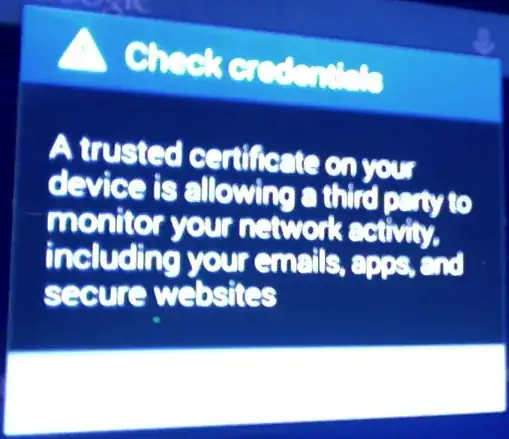
Guess you're using Kitkat (or newer) on that device? I'm afraid in that case you've got to live with that (you will always receive this warning as soon as you've installed a custom certificate – see official changelog regarding this1) – or root your device and install certificates as "trusted certificates" only.
How to install a certificate as "trusted system certificate"
As said, this requires a rooted device. Further, I'm not sure whether it works for certificates other than "CA root certificates" (those used to sign other certificates). For sure you'll need a .pem certificate for the following – and here are the steps:
# find the hash value of the certificate
openssl x509 -inform PEM -subject_hash_old -in cacert.pem | head -1
# prepare your certificate. The following line assumes the has is d12345:
openssl x509 -inform PEM -text -fingerprint -in cacert.pem > d12345.0
# now on the Android device: remount `/system` to be able to write to it
mount -o remount,rw /system
# move the certificate to the `cacerts` dir:
cp d12345.0 /system/etc/security/cacerts/
# now adjust the file permissions:
cd /system/etc/security/cacerts/
chown root:root d12345.0
chmod 0644 d12345.0
# finally, remount `/system` read-only
mount -o remount,ro /system
(source: Android without Google 2: ownCloud)
1: thanks to Andrew T. finding that link for proof in the comments